The 99% Problem: Why Uploads Fail When You Need Them Most
You've been there. The progress bar crawls to 97%, 98%, 99%... then nothing. Or worse: an error message flashes and the whole thing restarts from zero. Your deadline is in twenty minutes, your client is waiting, and the file simply won't go through.
File upload failures are one of the most universally frustrating experiences on the internet. They happen to everyone — from casual users sending vacation photos to professionals uploading gigabyte-sized project files. The good news? Most upload failures trace back to a surprisingly small set of root causes, and nearly all of them have straightforward fixes.
This guide covers the ten most common reasons file uploads fail, organized by how frequently they occur in real-world scenarios. Each fix includes specific diagnostic steps so you can identify the problem quickly and get your file uploaded. For more platform-specific guidance, check out our FAQ's File Upload troubleshooting section or visit our help center.
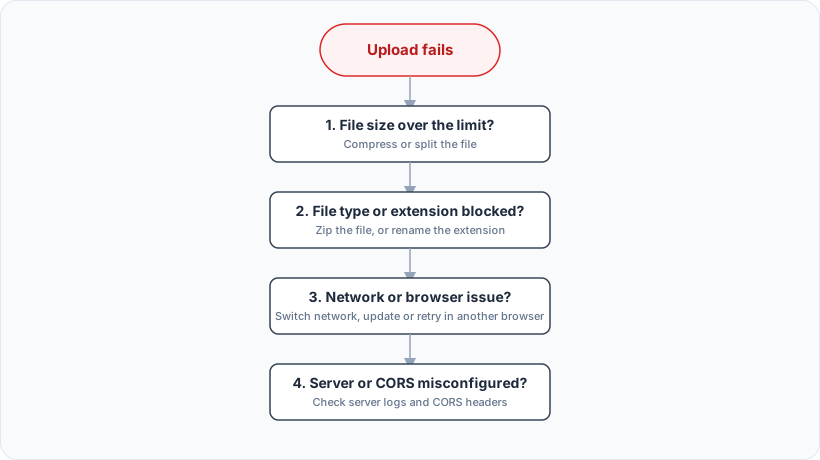
Fix #1: File Size Exceeds the Platform Limit
This is the single most common cause of upload failures. Every file-sharing platform enforces a maximum file size, and when you exceed it, the server returns an HTTP 413 Request Entity Too Large error — or sometimes just a generic "upload failed" message that tells you nothing.
Here are typical size limits across popular platforms:
PlatformFree Tier LimitPaid Tier LimitGmail Attachments25 MB25 MB (Google Drive link for larger)WeTransfer Free2 GB200 GB (WeTransfer Pro)Dropbox Free2 GB per file (upload)2 GB per file (storage limit differs)Google Drive Free750 GB per day (upload)Same (workspace plans differ)File.io20 GBN/ATinyUpload50 MBN/AQuickUpload Free100 MB2 GB+ (paid plans)Slack Free1 GB per fileVaries by planDiscord Free25 MB (Nitro: 500 MB)500 MB (Nitro)
Solution: Check the platform's documentation for current limits before uploading large files. If you're consistently bumping against size caps, consider compressing your file first (ZIP archives typically reduce file sizes by 30–70% depending on content) or switching to a service designed for large transfers. Services like QuickUpload offer generous free tiers specifically because we understand that file sizes keep growing while many platforms haven't kept pace.
Fix #2: File Type or Extension Is Blocked
Many platforms maintain blocklists of file extensions considered potentially dangerous. Executable files (.exe, .bat, .scr, .cmd), scripts (.ps1, .vbs, .js), and certain archive types are routinely blocked regardless of whether they're actually malicious. Some platforms also reject files based on their MIME type — the server inspects the actual file contents, not just the extension, and blocks anything that doesn't match expected patterns.
Commonly blocked extensions include:
Executables: .exe, .msi, .app, .deb, .rpmScripts: .bat, .cmd, .ps1, .vbs, .sh, .js (in some contexts)System files: .dll, .sys, .drv, .cplWeb code: .html, .htm (sometimes), .php, .aspCertain archives: .rar (occasionally), .iso, .img
Solution: If your legitimate file is being blocked by extension, try archiving it into a ZIP file first. Most platforms allow ZIP uploads even when they block the contained file types. Alternatively, rename the extension temporarily (e.g., .exe → .exe.txt) and instruct the recipient to rename it back after downloading. Always verify this doesn't violate the platform's terms of service.
Fix #3: Browser-Specific Issues
Browsers handle file uploads differently, and quirks in one browser may not exist in another. Common browser-related problems include:
Corrupted cache: Stale JavaScript or cached error states can prevent uploads from initiating properlyMemory limits: Chrome, for instance, handles very large files differently than Firefox, and older browser versions may struggle with files over 2 GB due to JavaScript integer limitationsExtension interference: Ad blockers, privacy extensions, and script blockers can interfere with upload endpointsOutdated browser: Modern upload features like chunked/resumable uploads (defined in RFC 7578) require reasonably current browsers
Solution: First, try uploading in an incognito/private window — this disables most extensions and uses a clean cache. If that works, the problem is an extension or cached state; clear your cache or disable extensions selectively. If incognito also fails, try a different browser entirely. Chrome and Edge (Chromium-based) generally have the best compatibility with modern upload implementations.
Fix #4: Network Instability
File uploads are far more sensitive to network quality than downloads. A momentary packet loss during download causes a brief stutter; during upload, it can abort the entire transfer — especially if the platform doesn't support resumable (chunked) uploads.
Symptoms of network-related upload failures:
Upload fails at different percentages each attempt (not consistently at the same point)Works fine with small files but fails with larger onesFails during peak usage hours but works late at nightError messages mention "connection reset," "network error," or "socket hang up"
Solution: Switch from WiFi to ethernet if possible — WiFi interference from microwaves, neighboring networks, and physical obstacles causes far more upload issues than people realize. If you must use WiFi, move closer to your router or use the 5 GHz band if available. Disable VPNs during large uploads — VPN overhead adds latency and another potential failure point. If you're on a corporate or shared network, check whether IT has implemented upload throttling or packet inspection that could be interfering.
Fix #5: Filename Special Characters
Filenames that work perfectly fine on your local machine can break uploads when they hit the web. The issue is URL encoding: characters like spaces, ampersands, hash symbols, question marks, and exclamation points have special meaning in URLs and must be encoded (%20 for spaces, %26 for &, etc.). Not all servers handle these encoded filenames correctly, leading to silent failures or truncated names.
Problematic characters in upload filenames:
CharacterURL EncodingCommon IssueSpace%20 or +Most servers handle this, but some break& (ampersand)%26Frequently breaks URL parsing# (hash)%23Treated as URL fragment — truncates filename? (question mark)%3FTreated as query string separator! (exclamation)%21Some CDNs/WAFs flag as suspiciousNon-ASCII (é, ñ, 中文)Multi-byte encodingInconsistent handling across servers/ and %2F, %5CPath separators — almost always rejected
Rename your file before uploading. Use only letters, numbers, hyphens, and underscores. A filename like Q2_Financial_Report_2026_Final.pdf will never cause encoding problems. This simple habit prevents a surprising number of upload failures.
Fix #6: Server-Side Timeout
Servers don't wait forever for uploads to complete. Both the web server software and any reverse proxy in front of it enforce timeout limits. When an upload takes longer than the configured timeout, the connection is dropped and the upload fails — often without a useful error message.
Typical timeout defaults:
Apache web server: 300 seconds (5 minutes) default for request timeoutsNginx reverse proxy: 60 seconds default for proxy_read_timeoutBrowsers: Vary widely — generally 30 seconds to 120 seconds before showing a timeout warningPHP applications: Often limited by max_execution_time (typically 30–120 seconds)
How to tell if timeout is the culprit: Your upload consistently fails after roughly the same amount of time (e.g., always around 60 seconds or always around 2 minutes). The failure time correlates with file size — larger files fail, smaller ones succeed. You see errors like "connection timed out," "gateway timeout (504)," or "upstream timeout."
Solution: For your own uploads, there's little you can do about server-side timeouts except choose platforms known for handling large files properly. Look for services that implement resumable/chunked uploads — these break large files into smaller pieces that each fit within timeout windows. At QuickUpload, our infrastructure is specifically optimized for reliable uploads with appropriate timeout configurations across our stack.
Fix #7: Antivirus or Firewall Interference
Security software can intercept and block file uploads in ways that aren't immediately obvious. Antivirus programs scan files during upload, which adds processing time and can trigger timeouts (see Fix #6). More aggressively, some security products block uploads to domains they don't recognize or flag certain file patterns as suspicious.
Common symptoms:
Upload starts normally then stalls partway throughUpload speed is dramatically slower than your normal internet speedWorks on other devices/networks but not on your primary computerSpecific file types fail while others upload fine from the same device
Solution: Temporarily disable your antivirus real-time protection and retry the upload. If it works, add the upload domain and the target application to your antivirus exclusion list. For firewall issues, check whether your security software has an "upload protection" or "web scanning" feature that can be toggled. Corporate firewalls are more restrictive — if you're on a work machine, you may need to contact IT about whitelisting the file-sharing service.
Fix #8: Storage Quota Exceeded
When you're uploading to a cloud storage service (Google Drive, Dropbox, OneDrive, iCloud), the upload might fail not because of the individual file size but because you've exceeded your total storage quota. Confusingly, the error message often says something generic like "upload failed" rather than "storage full."
Complicating matters further, many services share quotas across linked services:
Google: 15 GB shared across Gmail, Google Drive, and Google PhotosMicrosoft: 5 GB OneDrive base quota (varies with Microsoft 365 subscription)Apple: 5 GB shared across iCloud Drive, Photos, and device backupsDropbox: Plan-specific (Basic: 2 GB, Plus: 2 TB, etc.)
Solution: Check your storage dashboard before assuming the upload itself is broken. Delete unnecessary files or upgrade your storage plan. For one-off large transfers, consider using a dedicated file transfer service like QuickUpload instead of trying to shoehorn everything into your cloud storage quota.
Fix #9: Cookie/Consent Banner Interference
Here's a subtle one that catches people off guard: GDPR cookie consent banners and similar pop-over UI elements can actually block upload requests. How? Many consent management platforms inject JavaScript that intercepts or delays outgoing requests until the user interacts with the banner. If the banner's script conflicts with the upload handler's script, the upload silently fails or hangs indefinitely.
Other forms of UI interference include:
Browser notification permission prompts appearing mid-uploadExtension popups or warnings overlaying the pageAuto-save or auto-sync dialogs from desktop applicationsPassword manager autofill popups on form fields near the upload button
Solution: Accept or dismiss consent banners before starting your upload. Close unnecessary browser tabs and disable notification requests for the site. Use incognito mode to rule out extension interference. If a particular site consistently has this problem, it may indicate poor frontend implementation on their part — consider using a better-designed alternative.
Fix #10: CDN, WAF, or Proxy Blocking Large Uploads
Many websites sit behind Content Delivery Networks (CDNs) and Web Application Firewalls (WAFs) that add another layer of upload restrictions beyond what the application itself enforces. Major providers like Cloudflare, AWS WAF, and Akamai often impose their own file size limits, request body limits, or upload duration restrictions that can cause failures even when the destination server would accept the file.
Known limitations:
Cloudflare free plan: 100 MB limit on upload request bodies (higher on paid plans)AWS WAF: 16 KB limit for inspection body size (larger payloads may be rejected or passed uninspected depending on configuration)Corporate proxies: Frequently cap uploads at arbitrary sizes (50 MB, 100 MB, or 500 MB are common corporate limits)ISP-level filtering: Some ISPs throttle or block large outbound transfers
Solution: There's not much end-users can do about CDN/WAF limits except choose services that either don't use restrictive CDN configurations or have paid for higher limits. For corporate proxy issues, contact your IT department. As a general rule, purpose-built file transfer services invest more in upload-friendly infrastructure than general-purpose platforms that added file sharing as an afterthought.
Decision Tree: Match Your Symptom to the Right Fix
Not sure where to start? Follow this decision tree to identify the most likely culprit and the optimal fix order:
Does the error mention file size or show HTTP 413? → Fix #1 (check size limits)Does the error mention file type, format, or extension? → Fix #2 (blocked file type)Does it fail at roughly the same time/percentage every attempt? → Fix #6 (server timeout) or Fix #10 (CDN/WAF limit)Does it fail at different points each time? → Fix #4 (network instability)Does it work in incognito but not normal browsing? → Fix #3 (browser cache/extensions) or Fix #9 (cookie/banner interference)Does it work on other devices or networks? → Fix #7 (antivirus/firewall) or Fix #4 (local network)Is the filename long or contain special characters? → Fix #5 (rename the file — quickest win)Are you uploading to cloud storage (Drive, Dropbox, etc.)? → Fix #8 (check storage quota)None of the above match? → Try fixes in this order: #5 → #3 → #1 → #4 → #7
Prevention Checklist: Reliable Uploads Every Time
Stop fighting upload fires with this pre-upload checklist:
Check file size against the platform's stated limit before starting Rename file to remove special characters (letters, numbers, hyphens, underscores only) Verify file extension isn't on common blocklists (or ZIP it if needed) Use ethernet instead of WiFi for files over 100 MB Close unnecessary browser tabs and disable VPN for large uploads Try incognito mode first if you've had previous failures on a site Check available storage quota if uploading to cloud storage Choose a service that supports resumable/chunked uploads for large files
When to Escalate Beyond DIY Fixes
If you've worked through this list and your upload still fails, the problem may be on the service provider's side. Server outages, misconfigured infrastructure, or temporary capacity issues can all cause persistent failures that no client-side fix will resolve. In those cases:
Check the service's status page for reported outagesTry again in 15–30 minutes (temporary issues often resolve quickly)Contact the service's support team with specifics: file size, file type, error message, browser, and timing of failureConsider switching to a more reliable file transfer service for important transfers
At QuickUpload, we've built our platform specifically to avoid these common pain points — reasonable file size limits, no account required for recipients, robust infrastructure behind a properly configured stack, and support for the file types you actually use. Because getting your files from point A to point B shouldn't require a degree in network troubleshooting.
For more answers to common upload questions, browse our FAQ or reach out through our help center.